
Free Live Webcam to Webcam: How Cam2Cam Works
Cam2cam means your camera and the performer’s camera are both live at the same time. You’re not just watching – you’re being watched back in real time. That two-way webcam chat is the entire appeal, and whether you access it free depends on which room type you choose.
If you’ve only tried random-stranger video chat roulette apps, most of what you know doesn’t apply here. Live cam platforms work differently, and that distinction is the fastest way to find the right rooms and stop wasting time.
This guide is for adults 18 and older. All platforms discussed require age verification before camera access is granted.
What Cam2Cam Is and How It Works
Cam2cam (also cam-to-cam, c2c, or two-way webcam chat) is a feature on live cam platforms where you turn on your own webcam and microphone so the performer can see and hear you while you watch their stream. It’s a mutual video connection, not a one-sided broadcast.
Technically, it relies on the same browser-based video and audio technology that powers any modern video call. Your browser requests permission to access your camera and microphone, then streams that feed directly into the chat room once you grant it. No software download is required. The connection runs entirely through your browser, and the two-way video starts almost instantly once permissions are granted.
Cam2Cam vs. One-Way Viewing
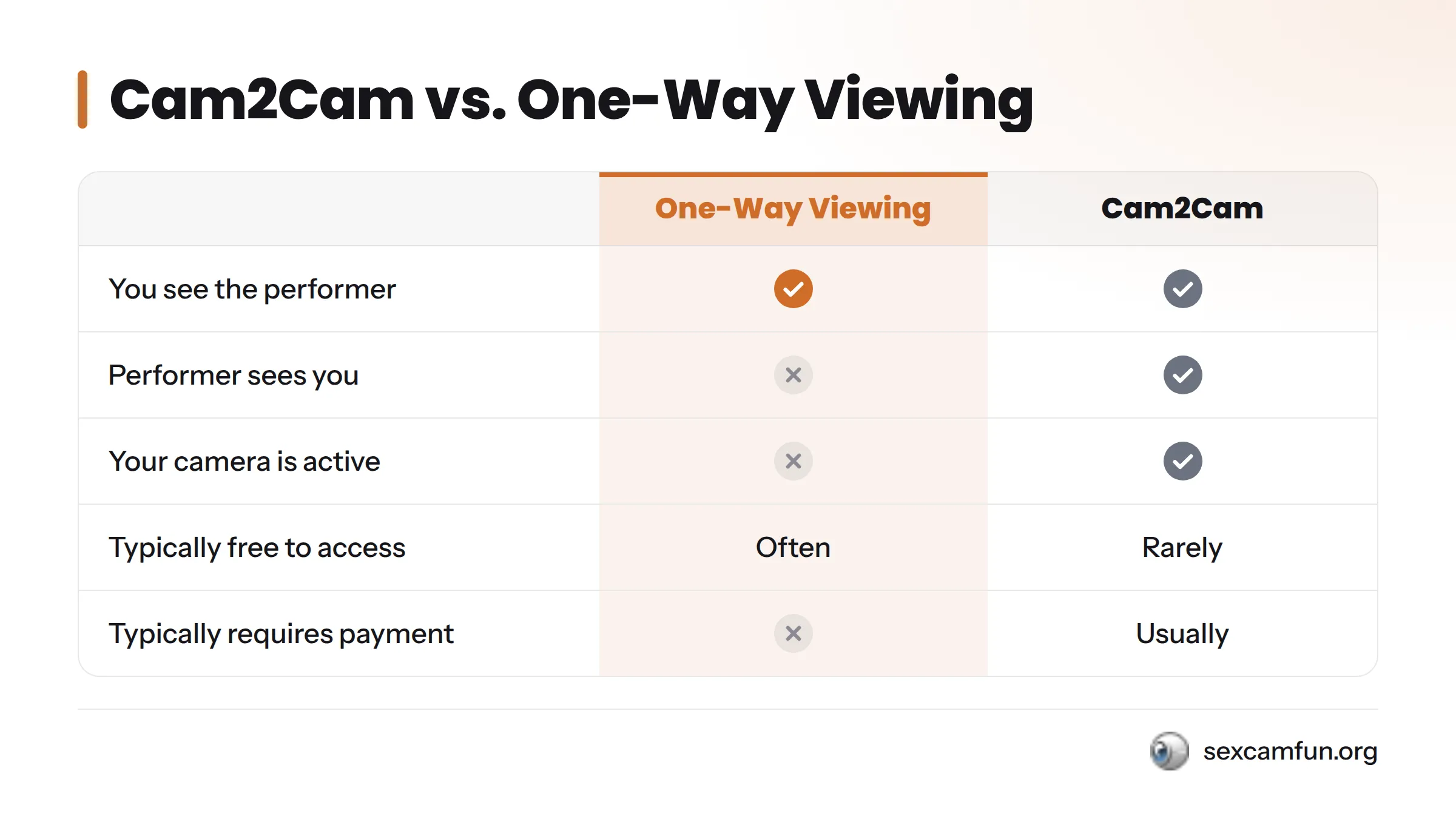
One-way viewing is the default on most live cam sites. You watch the performer, type in chat, maybe send a tip – but your camera stays off. Cam2cam flips that into a two-way exchange.
| Feature | One-Way Viewing | Cam2Cam |
|---|---|---|
| You see the performer | Yes | Yes |
| Performer sees you | No | Yes |
| Your camera is active | No | Yes |
| Typically free to access | Often | Rarely |
| Typically requires payment | No | Usually |
Cam2Cam vs. Random Video Chat
The biggest mix-up happens here. Random video chat pairs you with an anonymous stranger for a one-off call – no performer, no room, no context. Cam2cam on a live platform is different. You’re connecting with a specific performer in a specific room, usually after some free interaction, and two-way video is a deliberate platform feature rather than the entire purpose.
If you’re looking for an Omegle-style experience, this guide covers something else. It explains how cam2cam works on actual live cam sites like SexCamFun.
Step 1: Find a Room That Supports Cam2Cam
Not every room offers cam2cam. Confirm the room itself supports a two-way connection before you do anything with your camera.
Room Types and Cam2Cam Availability
Public free room: Open to anyone, no payment required to watch. Cam2cam is sometimes disabled here or offered as a limited preview.
Private-only room: The performer has stepped into a one-on-one session. Cam2cam is almost always available, since direct mutual interaction is the entire point.
Group or party room: Multiple viewers share the room with one performer. Cam2cam support varies widely. When offered, it’s often limited to a “spy show” arrangement rather than full two-way access for everyone.
Look for a visible camera toggle or cam2cam label in the room controls. If you don’t see one, the room likely doesn’t support it.
Step 2: Understand Free Rooms vs. Private Sessions
This distinction answers the biggest question: Is free webcam-to-webcam chat actually available?
Based on real platform patterns, free rooms let you watch and chat without paying, but they usually keep cam2cam locked or limited. Full cam2cam – where your video and audio stream to the performer without restriction – almost always requires a private session.
When free public rooms do offer cam2cam, it’s typically a brief preview or a spy-show variant. Full, sustained two-way video is consistently tied to a paid private session. Always check the specific room before assuming either way.
That single distinction, free room versus private session, answers whether cam2cam is ever truly free better than any blanket yes or no.
Step 3: Enable Your Webcam and Microphone
Once you’ve found a room supporting cam2cam, the next step is giving your browser permission to use your camera and microphone. This works the same way across nearly every live cam platform because it relies on standard browser permission APIs.
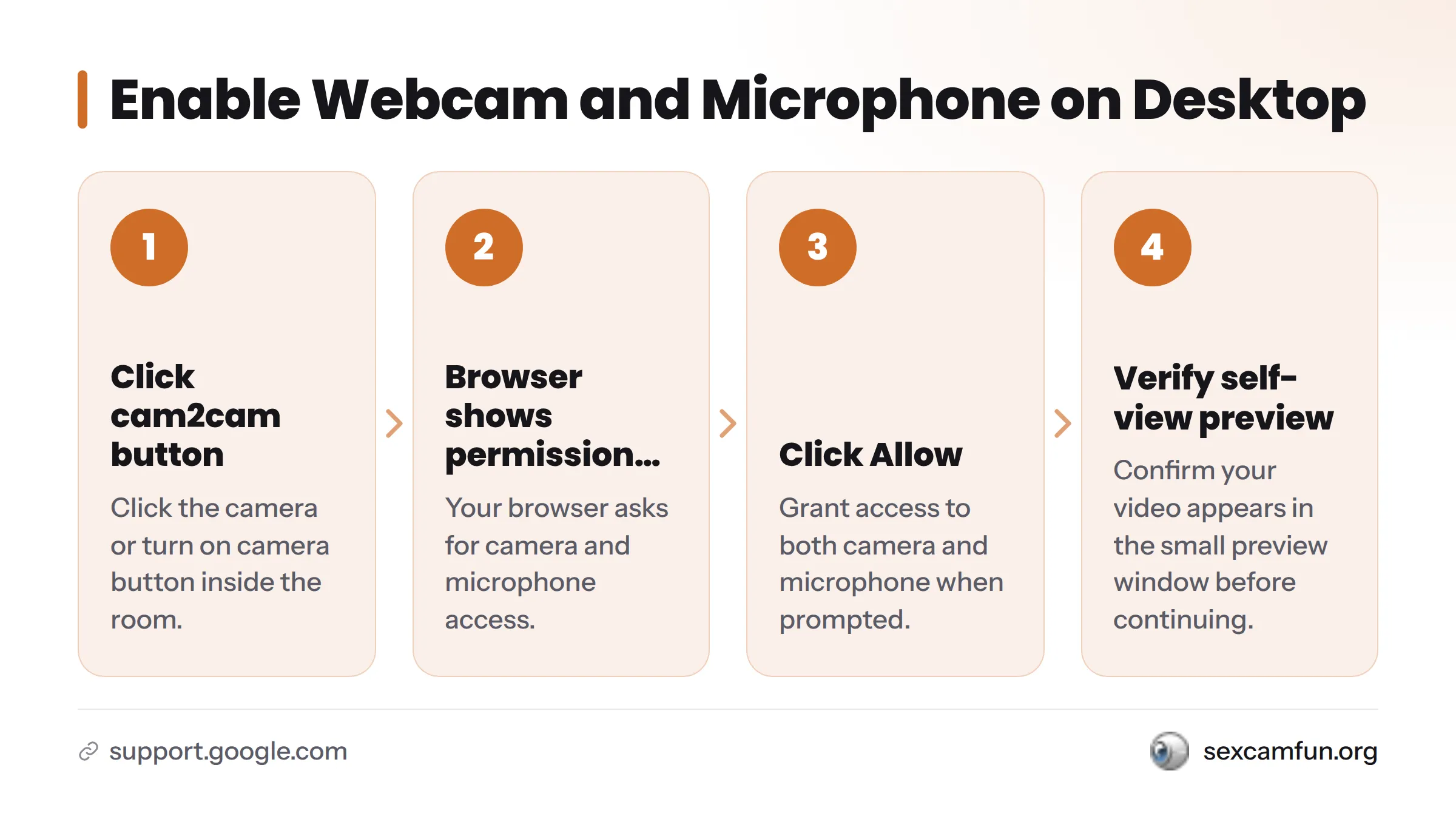
On Desktop
- Click the cam2cam or “turn on camera” button inside the room.
- Your browser shows a permission prompt asking for camera and microphone access.
- Click Allow. If you accidentally click Block, reset the permission manually in your browser’s site settings.
- Confirm your video preview appears in the small self-view window before continuing.
Chrome, Firefox, and Edge handle this prompt nearly identically, though exact wording differs slightly. For deeper details on how browser permissions work, check Google’s Chrome camera and microphone permission documentation.
On Mobile
- Tap the cam2cam icon inside the room, usually a small camera symbol.
- Approve the camera and microphone permission prompt from your mobile browser.
- If nothing happens, check that your phone’s browser app itself has camera and microphone permission enabled in your device settings, not just the in-browser prompt.
- Rotate your phone to landscape if the video preview looks cropped or distorted.
Mobile Safari and Chrome both support cam2cam without needing a separate app installed.
Before You Connect
- Camera permission granted (check your browser’s address bar icon to confirm)
- Microphone access granted
- Decent lighting so your video isn’t too dark
- Stable internet connection, ideally Wi-Fi rather than cellular data
- Self-view preview is visible before you commit
Step 4: Start the Two-Way Video Connection
Once permissions are granted and your preview looks right, the two-way connection starts almost immediately – usually within a second or two. Your video feed streams to the performer while theirs continues to you, creating the mutual, simultaneous link that defines cam2cam.
There’s no separate “connect” button beyond the initial permission grant in most rooms. If the room is a private session, the two-way feed typically stays active for the duration. If it’s a limited free preview, it may end automatically after a short window.
Free vs. Paid: What’s Actually Available
Here’s the direct comparison:
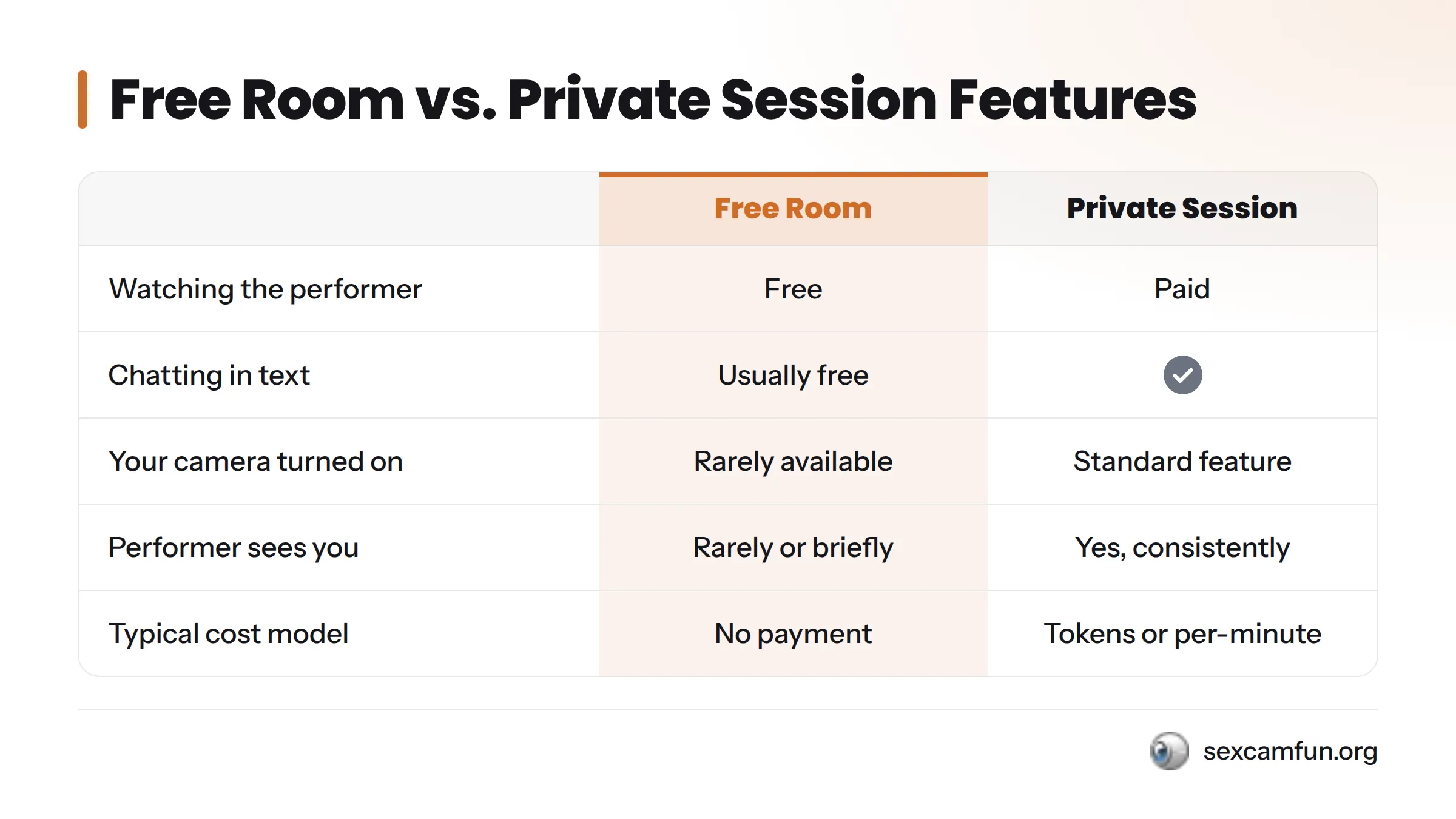
| Free Room | Private Session | |
|---|---|---|
| Watching the performer | Free | Paid |
| Chatting in text | Usually free | Included |
| Your camera turned on | Rarely available, often limited | Standard feature |
| Performer sees and hears you | Rarely, or only briefly | Yes, consistently |
| Typical cost model | No payment | Tokens or per-minute billing |
For detailed breakdowns of token pricing and what private sessions cost, SexCamFun’s guide to free rooms versus paid options covers those specifics. To see what a free room looks like before deciding whether to go private, browse SexCamFun’s free sex cams to get a feel for the interface and controls.
Troubleshooting Cam2Cam Issues
Real troubleshooting matters more than generic advice, so here’s what actually causes most problems and how to fix each one.
Camera Not Detected
Close any other app already using your camera, like Zoom or a video editor running in the background. Refresh the page after closing the conflicting app. Check your device’s camera settings to confirm no other browser tab has an active camera lock.
Permission Blocked in Browser
Click the small camera or lock icon in your browser’s address bar. Find the camera and microphone settings for the site and switch them from “Block” to “Allow.” Refresh the page so the new permission takes effect. On mobile, you may need to adjust your phone’s system-level app permissions, not just the in-browser setting.
Video Freezing or Lagging
Switch from cellular data to Wi-Fi if possible. Close other bandwidth-heavy apps or browser tabs running in the background. Lower your camera resolution if the room interface offers that option. If lag persists, it’s often on the performer’s end rather than yours, since cam2cam is a two-way stream and either side’s connection can create a bottleneck.
Your camera only activates after you explicitly grant permission – nothing is forced on automatically. You can revoke camera or microphone access anytime through your browser’s site settings, the same way you’d revoke access for any other site. Some platforms also support a virtual background if you’d rather not show your real surroundings, though availability varies by room and device.
Frequently Asked Questions
What does cam2cam mean? Both you and the performer have your cameras on at the same time, creating a two-way video connection instead of a one-sided stream.
How is cam2cam different from a regular one-way webcam show? In a one-way show, you watch the performer but your own camera stays off. In cam2cam, your camera is active too, so the performer can see you while you watch them.
Is free webcam-to-webcam chat ever actually available? Sometimes, but it’s usually limited. Free rooms occasionally offer a brief cam2cam preview, while full, sustained two-way video is typically gated behind a paid private session.
Do I need to pay to turn on my own camera? Turning your camera on is always free – it’s just a browser permission. What often costs money is the room itself, specifically a private session where cam2cam is a standard feature.
What’s the difference between a free room and a private session? A free room lets you watch and chat without paying, with cam2cam usually limited or disabled. A private session is a paid one-on-one room where cam2cam is typically available by default.
How do I know if a room supports cam2cam before joining? Look for a visible camera icon or cam2cam label in the room’s controls. If there’s no such indicator, the room likely doesn’t support it.
What permissions does my browser need? Your browser needs camera access and microphone access, granted through a standard permission prompt the first time you use cam2cam in that room.
Why isn’t my webcam showing up? Usually another app is already using your camera, or the browser permission was blocked. Close conflicting apps, check your permission settings, then refresh the page.
Can I do cam2cam without downloading an app? Yes. Cam2cam runs through your browser’s built-in camera and microphone access – no app or plugin download required on desktop or mobile.
Is cam2cam available on mobile browsers? Yes. Both mobile Safari and mobile Chrome support it directly through the browser.
What is a “spy show”? A spy show is a limited viewing mode inside a group or party room, often used as a middle ground between a free room and a full private session. Specifics vary by platform.
Can I use a virtual background during cam2cam? Some platforms support virtual backgrounds, though availability depends on the specific room and device you’re using.
Is my privacy protected when I turn my camera on? Your camera only activates after you explicitly grant permission. Nothing streams automatically, and you control when access starts and stops.
How do I turn my camera off or revoke access? You can revoke camera and microphone permission anytime through your browser’s site settings, the same way you’d manage permissions for any other website.
Does every room offer cam2cam? No. Cam2cam availability depends on the room type and the individual performer’s setup, so always check before assuming it’s available.
What should I check before starting a cam2cam session? Confirm camera and microphone permissions are granted, check your lighting, verify your connection is stable, and make sure the room actually supports cam2cam.
Where can I find free rooms to start with? SexCamFun’s free sex cams are a solid starting point to get comfortable with the interface before moving into a paid private session.
Where to Go Next
Cam2cam is straightforward once you understand the key distinction: free rooms let you watch, private sessions are where two-way webcam chat genuinely lives. Start by browsing SexCamFun’s free public rooms to get comfortable with the interface, then move into a private session once you’re ready for full cam2cam.
For the complete walkthrough on etiquette and what to expect inside a one-on-one session, check the full guide to cam2cam private sessions. If you’re curious how video call webcam features compare more broadly, SexCamFun’s video call webcam options page covers that territory in more depth.
When you’re ready for real two-way video, browse SexCamFun’s private HD cams and pick a room built for it from the start.